
Copy a YouTube Transcript as Clean Text
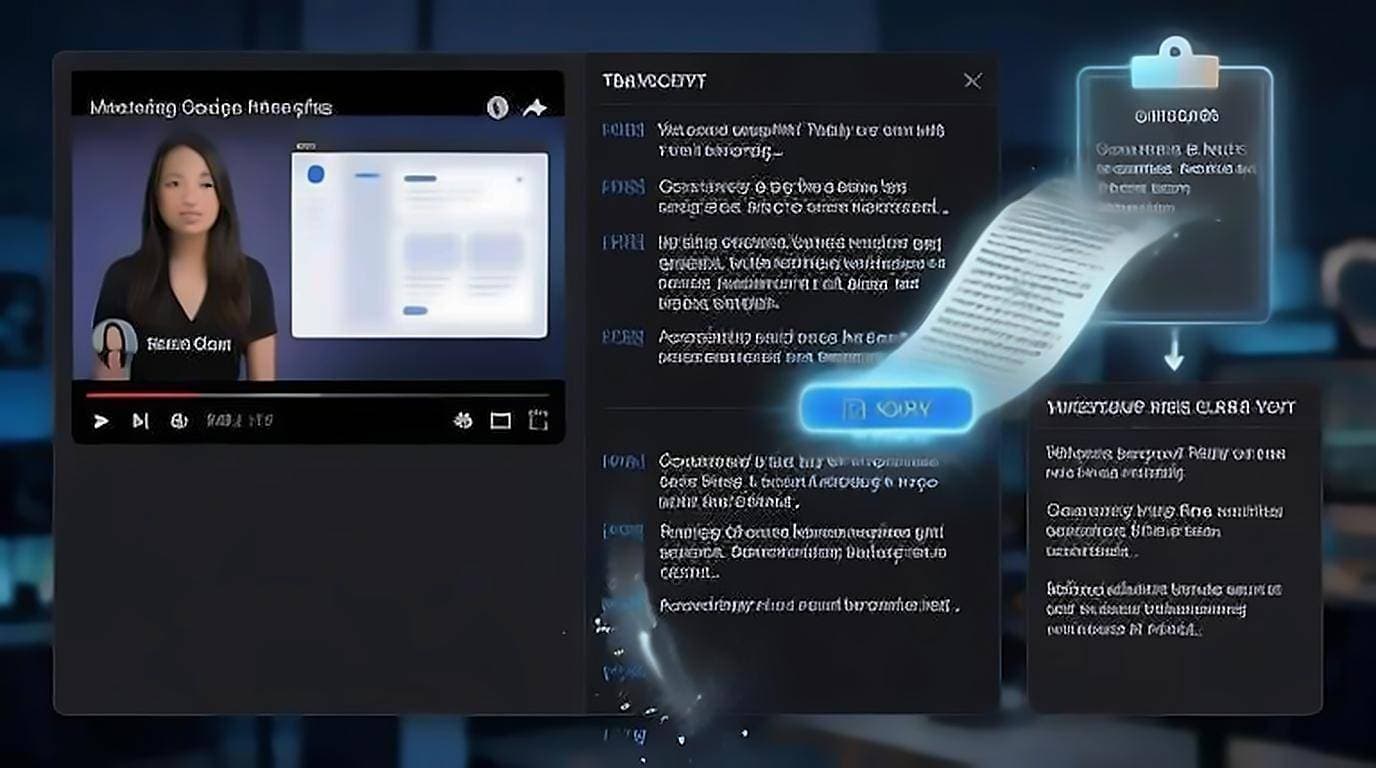
To copy a YouTube transcript as clean, timestamp-free text, you have two options: fight YouTube's native panel and delete the time codes by hand, or use a one-click "copy clean" button that strips them for you. This guide shows both, explains why the native copy is so messy, and covers what to actually do with the text once you have it.
Why copying from YouTube's panel is painful
YouTube's transcript panel was built for reading along, not for copying. When you select the text and hit copy, you get something like this:
0:00 in this video we're going to
0:03 walk through three ways to
0:06 copy a transcript quickly
Every line arrives with a timestamp glued to the front and a hard line break at the end. Paste that into a doc and you get a broken, one-idea-per-line mess with numbers scattered through it. Cleaning it means deleting time codes line by line or writing a find-and-replace pattern — fine once, tedious every time. The panel's timestamp toggle helps, but the manual selection still drags in awkward line breaks.
Copy clean text in one click
The free YouTube Transcript extension adds a Copy clean text button to the panel on the watch page. One click puts the entire transcript on your clipboard as flowing text — no timestamps, no per-line breaks, ready to paste anywhere. If you do need the time codes for reference, there's a separate Copy with timestamps option, so you choose per task instead of cleaning up afterward.
The practical difference:
- Native copy: select, copy, paste, then delete dozens of timestamps and rejoin broken lines.
- One-click clean copy: click once, paste a finished paragraph.
For the panel-based method and the wider picture, see how to get a YouTube video transcript.
Copy only the part you need
You rarely want the whole thing. Because the extension panel is searchable and every line is clickable, you can narrow down before copying:
- Type a keyword to search inside the video and jump to the matching moment.
- Confirm it's the right section by clicking the line to play it.
- Copy just that passage as clean text.
This is how you pull a single quote or one step of a tutorial without wading through the full transcript.
Cleaning up a native copy by hand
If you are stuck with YouTube's own copy for some reason, the cleanup is mechanical enough to automate. Paste into any editor with regular-expression find-and-replace (VS Code, Sublime, Notepad++, or Google Docs via an add-on) and run two passes. Both need regex mode switched on — the .* button in VS Code's find widget, per its search and replace docs — because without it the editor treats \n and the timestamp pattern below as literal characters and matches nothing.
First, strip the leading time codes. Search for ^\d{1,2}:\d{2}(:\d{2})?\s* with regex enabled and replace with nothing. That pattern matches both 0:07 and 1:02:14 at the start of a line, which is the shape YouTube uses once a video passes an hour.
Second, rejoin the lines. Captions break every few seconds, mid-sentence, so a raw paste is one fragment per line. Replacing every single newline with a space gives you a solid block; replacing \n only where the previous line does not end in sentence punctuation keeps real paragraph breaks intact. Neither pass restores punctuation that auto-captions never had in the first place, which is the part you still have to read through yourself.
What to do with the copied text
Clean text is the raw material for a lot of everyday tasks:
- Notes and study. Paste key sections into your notes app instead of rewatching. Students use this to study faster from video.
- Quotes and citations. Grab an exact quote with the correct wording — no mis-transcribing by ear.
- Summaries. Drop the text into an AI tool to summarize the video in seconds.
- Content. Use the transcript as a starting draft to repurpose the video into a blog post.
- Translation. Paste into a translator to read a video in your language.
Copying on a phone
In the YouTube app, the transcript lives behind the video description rather than beside the player: tap the description, then Show transcript. You can select and copy from there, but the app fights you on long selections, because the panel scrolls itself to follow playback while you are dragging. Pausing the video first makes the selection hold still.
If you copy transcripts regularly, the more reliable route on mobile is to open the video in Chrome or Safari and request the desktop site. You then get the same panel a computer shows, and browser extensions work on Android builds of Chromium browsers that support them. For a file rather than a clipboard copy, see downloading the transcript as TXT, SRT, or PDF.
When copy does not give you what you expected
A few failures come up often enough to be worth naming:
- The paste contains interface text. Dragging a selection past the edge of the panel picks up button labels and channel names along with the words. Copy from the panel's own button rather than a manual selection where you can.
- The text stops partway. Long videos render the transcript in chunks, so a selection that looks complete on screen can end early. Check that the last line you pasted matches the last line of the video, not just the last line you could see.
- Everything is lower case with no punctuation. That is an auto-caption, not a copy error. YouTube's speech recognition does not produce sentence punctuation, so the text arrives as one long run.
- Names and jargon are wrong. Also auto-captions, and worth checking before you quote anything. See how accurate YouTube auto-captions are.
Keep the source attached
Whatever you copy, paste the video title, the channel, and the URL above it in the same document. It costs a few seconds and saves the situation where you have a useful quote six weeks later with no idea which video it came from. If you copied a specific passage rather than the whole transcript, note the timestamp too: a transcript with timestamps lets you build a link that opens the video at that exact second, which turns your note into something anyone can verify.
If the video simply has no captions, there's nothing to copy yet — here's what to do when a YouTube video has no transcript.