
How to Get a YouTube Video Transcript (2026)
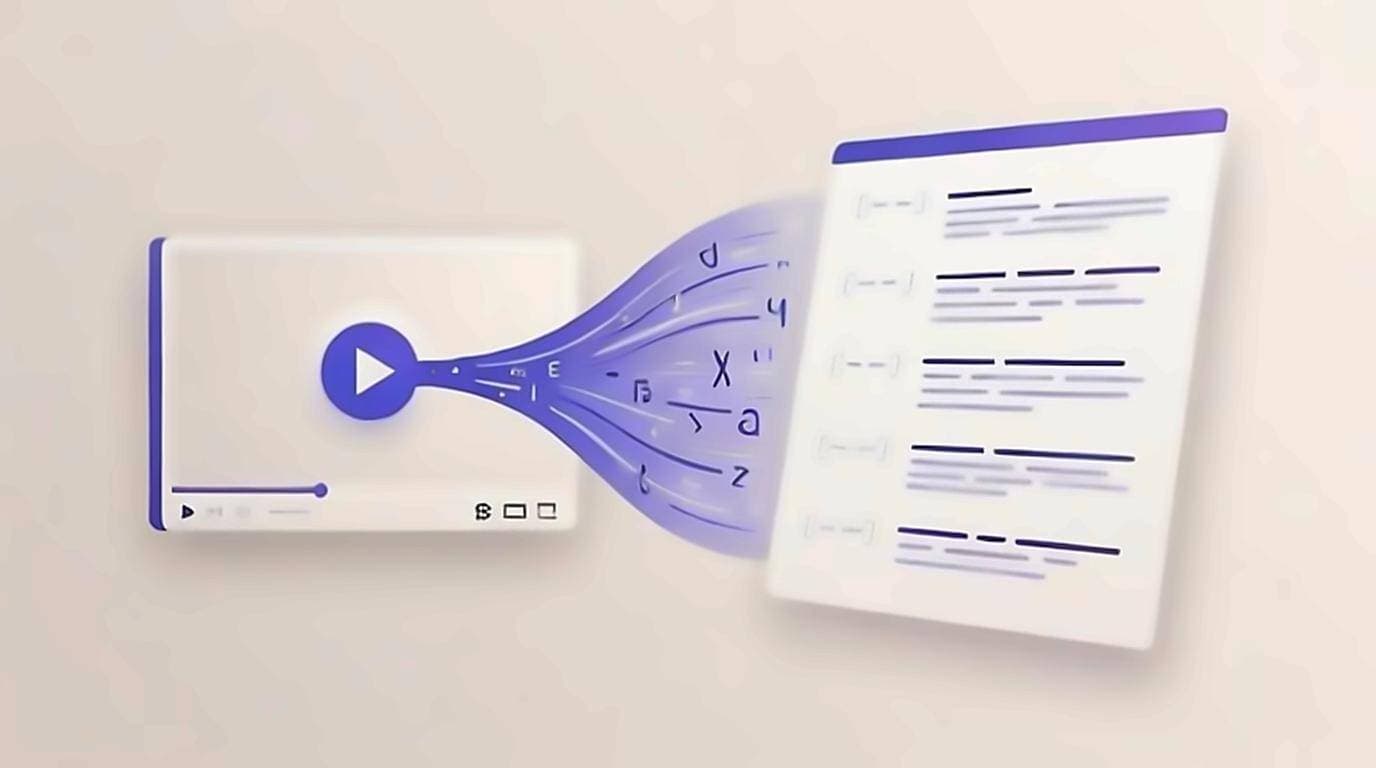
To get a YouTube transcript, open the video, click the ·· more menu under the title, and choose Show transcript — or use a free on-page extension that shows the full text next to the player automatically. Almost every YouTube video already carries a text version of what's being said; you just can't always see it. This guide walks through every way to get a YouTube video transcript in 2026 — on desktop and mobile, with or without timestamps — so you can skim a 40-minute talk in two minutes, search for a single quote, or paste clean text into your notes.
What a transcript is and why you'd want one
A transcript is the full spoken content of a video written out as text. It comes either from captions the creator uploaded or from YouTube's automatic speech-to-text; if that distinction is new, transcript vs captions vs subtitles untangles the three terms. Once you have a YouTube video transcript you can read at your own pace, quote a source accurately, translate a passage, feed it to an AI to summarize a long video, or repurpose it into an article. A transcript can include timestamps for every line or be flattened into clean prose — both are useful, just for different jobs. Students use transcripts to review lectures without rewatching, researchers use them to cite exact quotes — the workflow in quoting a YouTube video in research — and creators use them to caption, translate, and reformat their own back catalogue. Whatever the reason, getting the text out of the video is the first step, and there are three dependable ways to do it.
Method 1: YouTube's built-in Show transcript panel
YouTube ships a transcript for most videos that have captions, and it's free. "Most" is doing some work there: automatic captions only exist for the languages YouTube's speech recognition supports, and YouTube's own help page lists exactly which ones — if the video's language isn't on that list and the creator uploaded nothing, there is no transcript to show. On desktop:
- Open the video you want.
- Click the ·· more menu directly under the video title (next to the Save button).
- Choose Show transcript.
- A panel opens on the right with time-stamped lines. Use the language dropdown at the bottom to switch tracks, and toggle timestamps off if you prefer plain text.
It works, but it has real limits:
- It's buried three clicks deep and is missing entirely in the mobile app — if the button is nowhere to be found, work through how to find the transcript on YouTube, which covers where it moved to and why it sometimes isn't there.
- There's no search box — you scroll and hope you spot the line you need.
- Copying drags every timestamp along with the text, so you clean it up by hand before it's usable.
Method 2: The transcript right on the watch page (fastest)
The quickest option is to bring the transcript to the video instead of the other way around. Our free Chrome extension works as a YouTube transcript generator that shows the full text in a panel next to any video the moment you open it — no menu digging, no separate site, no account.
Because the text lives beside the player, you can:
- Click any line to jump to that exact moment in the video.
- Search the whole transcript to find a quote in seconds — more on that in how to search inside a video.
- Copy clean text with no timestamps, ready to paste anywhere. See how to copy a YouTube transcript for the details.
- Download the transcript as a file when you want to keep it — our guide on how to download a YouTube transcript covers the formats.
Method 3: Third-party transcript websites
Plenty of sites let you paste a video URL and get the text back. They're handy when you only need one transcript and don't want to install anything, but the trade-offs add up: you leave YouTube, copy the link, wait for a load, and often meet ads or a sign-up wall. Because you paste your links into someone else's server, there's a privacy cost too. Worth knowing where the line sits before you pick one: YouTube's Terms of Service allow access to content through the site, the app and the official API, and the better sites stay inside that by reading the caption track rather than downloading the video — worth a glance at a tool's own description if you are handing it links from work. Most of these tools also convert YouTube captions to plain text well enough, but you'll still tidy up spacing and speaker breaks yourself.
How to get a transcript on mobile (iPhone and Android)
The YouTube app hides the transcript far more than desktop does, and older versions omit it altogether. If your app is current, tap the video, tap the description to expand it, scroll to the bottom, and look for a Show transcript button. When that button isn't there, the reliable fallback is to open the video in your phone's browser and request the Desktop site from the browser menu — that exposes the same ·· more → Show transcript panel described above. Transcript websites also work on mobile browsers if you just need the text once.
Clean text vs. transcript with timestamps
How you want the transcript formatted depends on what you're doing with it:
- YouTube transcript with timestamps is best when you need to cite a moment, build chapter notes, or jump back into the video. Each line is anchored to a time, so a reader can follow along.
- Clean text — no timestamps, joined into paragraphs — is what you want for notes, quotes, translation, or drafting an article. It reads like normal prose and pastes cleanly into any editor.
The built-in panel gives you timestamped lines by default and makes clean text a manual chore. An on-page extension lets you copy either version in one click, which is why it's the faster route when you switch between the two often.
When a video has no transcript
Sometimes the Show transcript option simply isn't there. That usually means the creator disabled captions, the video is too new for YouTube to have processed auto-captions yet, or it's in a language YouTube can't auto-transcribe reliably. Give a fresh upload an hour or two, switch the caption language, or check back later. For the full set of workarounds, see what to do when a YouTube video has no transcript.
How accurate are auto-generated captions?
Auto-captions have improved dramatically and are usually excellent for clear, single-speaker English audio. Accuracy drops with heavy accents, crosstalk, background music, and specialised vocabulary — proper names, brand names, and technical jargon are where most mistakes hide. Creator-uploaded captions are more reliable because a human checked them. We dig into the numbers in our guide to YouTube auto-caption accuracy.
Which method should you use?
If you only came for the three-step version, how can I get a transcript of a YouTube video answers it without the tour. For a one-off, YouTube's built-in panel is fine. If you read transcripts often — to study, research, or turn videos into written content — an on-page extension saves the most time, because the text is always one glance away and never sends your links to a third party.
One caveat applies to every method above: a transcript is only as good as the captions it came from. Auto-generated captions handle ordinary speech well, but proper names and jargon still slip through, so check any quote against the audio before you publish it.