
How to Summarize a YouTube Video (Free, 4 Ways)
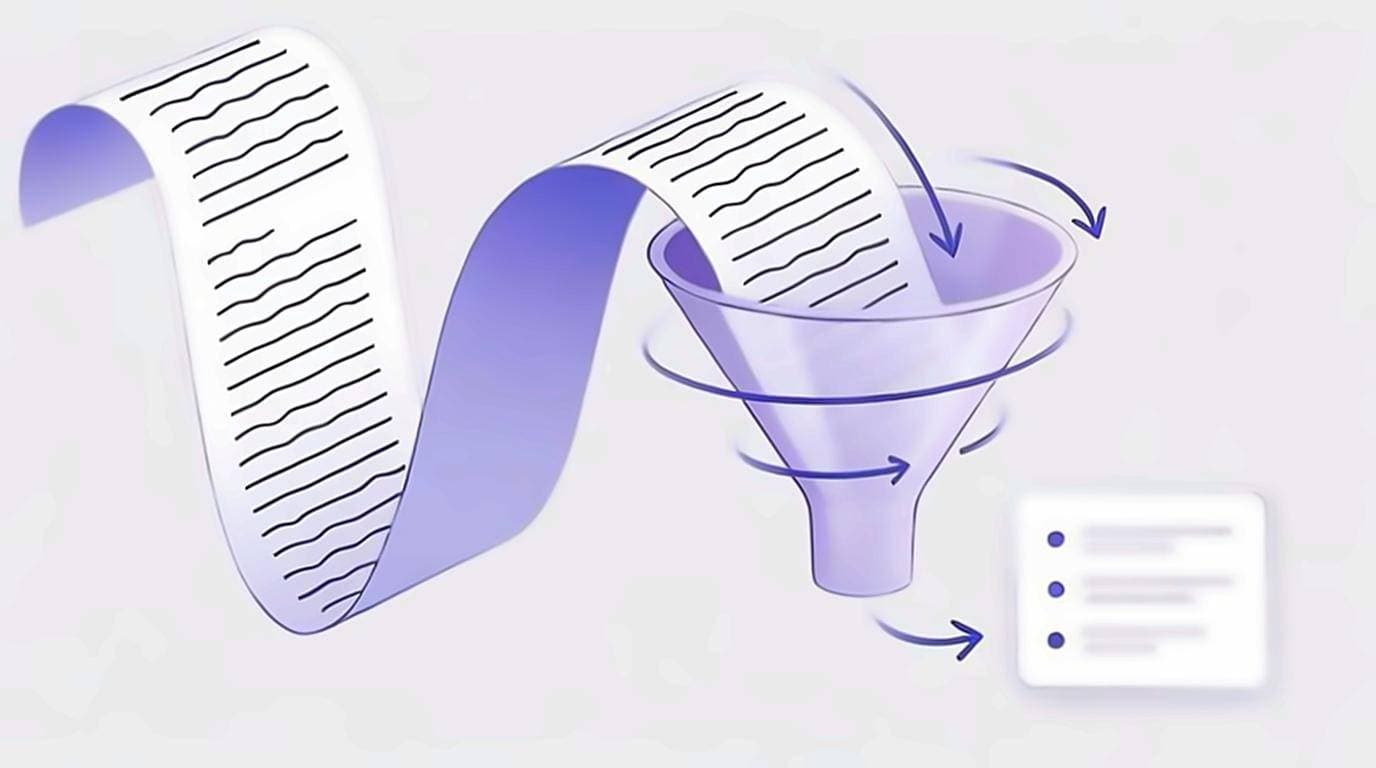
Want the gist of a 45-minute video in 30 seconds? You can summarize a YouTube video for free in four ways — and the most reliable one starts from the video's transcript, so the AI works from the exact words instead of guessing. Here's the short version, then each method in detail.
- From the transcript — copy the text, paste into any AI. Most accurate.
- ChatGPT / Claude / Gemini — with ready-made prompts.
- One-click summarizer tools — fastest, but trade-offs.
- Without subtitles — when no transcript exists.
Can ChatGPT summarize a YouTube video?
Yes — but not from the link alone in most cases. ChatGPT summarizes best when you give it the transcript text. Paste the transcript into the chat and ask for a summary, and you get an accurate result because the model is reading the actual words, not inferring from a URL. The same is true for Claude and Gemini. So step one for every AI method is getting the transcript — see the guide to getting a YouTube transcript. If you are summarising your own uploads, the creator workflow is in YouTube transcripts for content creators.
How to summarize a YouTube video into text
"Into text" is exactly why the transcript-first workflow wins: you turn spoken audio into text, then compress that text. The core loop:
- Open the transcript and copy it as clean, timestamp-free text.
- Paste it into your AI assistant of choice.
- Ask for the format you want — bullet summary, TL;DR, key takeaways, or an outline. Each shape has its own use; see building a summary from the transcript for the formats side by side.
Method 1: Summarize from the transcript (most accurate)
This is the recommended path. With our free extension, the transcript is already on the watch page — click Copy to grab clean text with no timestamps, then paste it into any AI. Because the model reads the full, correct wording, the summary keeps the video's real points and quotes. It also lets you summarize very long videos and podcasts that link-based tools choke on — see summarizing long YouTube videos for handling multi-hour recordings.
Method 2: ChatGPT, Claude & Gemini prompts
Paste the transcript, then use a prompt like:
Summarize this YouTube transcript in 5 bullet points.Give me a 3-sentence TL;DR, then the key takeaways as a list.Turn this transcript into a structured outline with headings.Extract every actionable tip and the timestamp near it.
Add one line that keeps the model honest
Whatever format you ask for, append Only use information present in the transcript. If something is unclear, say so rather than guessing. Without that line, models tend to smooth over gaps with plausible filler, which is the failure mode that makes a summary untrustworthy in the first place. With it, you get an explicit "the transcript doesn't cover this" instead of an invented answer.
Handling transcripts that are too long
All three models handle this well; Gemini and Claude tend to take longer transcripts in one paste. If a transcript exceeds what the model accepts, split it into halves or thirds at natural topic boundaries, summarize each part separately, then paste those summaries back in and ask for a summary of the summaries. Splitting mid-sentence is the main thing to avoid, since it can strand a conclusion away from its reasoning. For a model-by-model comparison and more prompt patterns, see using AI to summarize a YouTube video, or summarizing long YouTube videos for multi-hour recordings.
Method 3: One-click summarizer tools (fast, with trade-offs)
Plenty of tools (browser extensions and websites) summarize a video from its URL in one click. They're the fastest option, but weigh the trade-offs:
- Pros: instant, no copy-paste, often free with limits.
- Cons: sign-ups and quotas, you send links to a third-party server, and quality varies — you can't see the source text they used.
Best AI summarizer for YouTube? There's no single winner — a one-click tool is best for speed, while the transcript-first method wins on accuracy and privacy because you control the input and the prompt.
Method 4: Summarize a video without subtitles
If a video has no captions, there's no transcript to copy — so first generate one. Run the audio through a speech-to-text service to produce a transcript, then follow Method 1.
Why some videos have no transcript
Captions are either uploaded by the creator or generated by YouTube. Automatic captioning doesn't cover every case: YouTube's own automatic captioning documentation notes it depends on supported languages and audio quality, and creators can disable captions outright. Very recent uploads may also simply not have been processed yet. See what to do when a video has no transcript for the full set of options.
Expect lower accuracy, and plan for it
A machine transcript of unclear audio will contain errors, and any summary built on it inherits them silently, because nothing in a fluent summary signals which sentence came from a misheard word. The W3C's guidance on transcripts separates automatic output from a finished transcript for exactly this reason: the machine version is a starting point that someone still has to correct. Spot-check names, numbers, and technical terms against the audio before you rely on the summary.
Which method should you actually use?
The four methods are not ranked — they answer different questions. Match the method to what the summary is for:
- Just deciding whether the video is worth watching? A one-click tool is fine. You are filtering, not citing.
- Building study notes, or working on research you will have to defend later, changes the calculation. You will want to check individual claims weeks after you wrote the summary, and the transcript route is the only one that leaves the source text sitting next to the notes when you come back to them.
- Publishing anything based on the video: transcript, no exceptions.
- Long podcasts and conference talks need the transcript plus chunking, because link-based tools are least reliable exactly where videos are longest.
- No captions at all? Generate a transcript first. Nothing honest skips that step.
Where to find a YouTube summary
YouTube itself shows an AI-generated summary on some videos in the description area, but it's not available everywhere and you can't control its length or format. Generating your own from the transcript gives you the exact summary you want — a two-line TL;DR, a study outline, or show notes.
How to check a summary is actually right
Because you kept the transcript, checking takes about a minute:
- Search the transcript for every number, name, and quoted phrase in the summary. This is where models go wrong most often, and also the part a reader is most likely to repeat somewhere else.
- Check that the last section of the video shows up at all. A truncated summary reads perfectly well and simply stops covering the video partway through, which is easy to miss precisely because nothing about it looks broken.
- Cut anything unfalsifiable. "The speaker discusses several important considerations" is padding.
- Watch the hedging. If the speaker said "we think this might", the summary should not say "this does".
Click-to-jump makes the first step nearly free: find the line in the transcript, click it, and hear the sentence in context. That round-trip is the practical reason to summarize from a transcript rather than from a URL. The evidence stays attached to the claim.
Once you have a summary, the transcript is also the raw material to repurpose the video into a blog post or newsletter, or to search inside the video for exact moments.