
Download a YouTube Transcript (TXT, SRT, PDF)
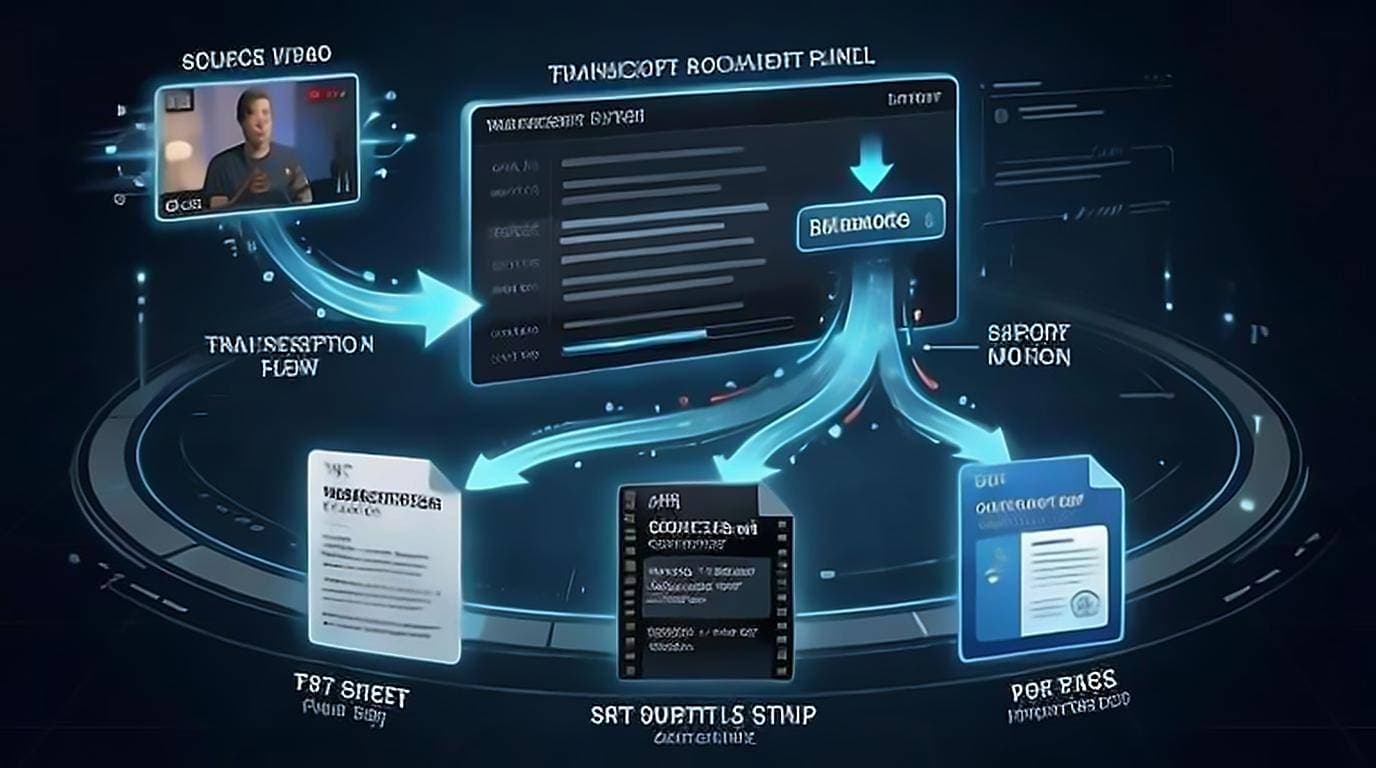
You can download a YouTube transcript in a few minutes and save it as TXT, SRT, or PDF, either straight from YouTube's built-in panel or in one click with a browser extension. The method you pick depends on how clean you want the output and whether you need timestamps. Below you'll find both routes, when to use each, and how to handle mobile.
What "download" really means for a transcript
YouTube generates captions for most videos automatically, and many creators add their own — what a transcript generator does is read that existing track rather than transcribe the audio again. That text already exists on the watch page — downloading just means getting it out of YouTube and into a file you control. There are two things you'll decide up front:
- Clean vs. timestamped. Clean text is a readable paragraph with no time codes, ideal for notes, quotes, and summaries. Timestamped text keeps the
0:14,0:18markers so you can find the exact moment later or build subtitles. - File format. TXT for plain notes, SRT for subtitles you'll load into a video editor, PDF for sharing a fixed, printable document.
If you just want to read or quote the words, clean TXT is almost always what you want. If you're captioning or editing video, you need SRT.
How to download a transcript from YouTube, step by step
YouTube's own panel works on desktop and costs nothing, but it takes a few steps and the output is rough.
- Open the video and click the more actions (
...) button under the title, or scroll to the description. - Click Show transcript. A panel opens on the right with the full text and timestamps.
- Use the toggle at the bottom of the panel to turn timestamps off if you want cleaner text.
- Select the text with your cursor, copy it, and paste it into a text editor or document.
- Save the file as
.txt, or print to PDF from your editor.
The catch: YouTube has no real "download" button here. You're copying and pasting, and the selection often drags timestamps and line breaks along with it. For a deeper walkthrough of the panel, see how to get a YouTube video transcript.
One-click download with a free extension
If you do this more than once, a browser extension removes the friction. The free YouTube Transcript extension adds a transcript panel directly on the watch page and lets you export in one click:
- Copy clean text — strips timestamps automatically, so you paste a tidy paragraph.
- Copy with timestamps — keeps time codes when you need them.
- Save to a file — download as TXT for notes or SRT for subtitles.
Because the panel lives on the page, you can also search the transcript and click any line to jump to that moment before you export. That's useful when you only need one section rather than the whole video.
Getting SRT for subtitles
SRT is the subtitle standard, and it's the one format the copy-paste route handles worst — it needs sequential numbering and precise 00:00:14,000 --> 00:00:18,000 timing that you can't produce by hand from a selection. SubRip is one of several caption formats YouTube itself accepts on upload — YouTube's list of supported subtitle files is the quickest way to check whether the format your editor exports will be accepted back on the platform.
- Export directly to SRT from the extension so the numbering and timing are formatted correctly.
- Load the
.srtinto your editor (Premiere, DaVinci Resolve, CapCut) or upload it as a caption track. - If the source captions were auto-generated, proofread punctuation and speaker changes before you publish — auto-captions get names and technical terms wrong.
What an SRT file contains
It helps to know the shape of the format, because most SRT problems are structural rather than textual. Each subtitle is a block of four parts: a sequence number, a timing line with a start and end separated by an arrow, one or two lines of text, then a blank line before the next block. The blank line is not decoration. Drop it and many players will treat the following block as a continuation and silently misalign the rest of the file.
Two rules follow from that. Numbering has to run consecutively from one, and timings must not overlap: a block that ends after the next one starts will be rejected outright by stricter players. Both are trivial for an exporter to get right and awkward to fix by hand in a long file, which is the practical argument for exporting rather than assembling it yourself.
Downloading a transcript in another language
If a video has captions in more than one language, the transcript panel shows a language dropdown, and whatever you pick is what you export. Two things are worth knowing before you rely on it.
First, translated captions are usually machine translations of the original caption track, not a separate transcription. That means they inherit the errors of the source captions and then add translation errors on top. For anything you plan to quote, work from the original language and translate afterwards, where you can at least see what the speaker actually said.
Second, the available languages are set by the creator and by YouTube's own coverage, so a language you can read may simply not be offered. In that case exporting the original and running it through a translator gives you the same result with fewer intermediate steps.
Downloading a transcript to PDF
PDF is best when you want a clean, shareable document that looks the same everywhere — a meeting record, a lecture handout, or a research citation.
- Get the clean text first (extension copy, or the panel with timestamps off).
- Paste it into a document editor and add the video title and URL at the top for reference.
- Use Print → Save as PDF.
Adding the source URL matters if you'll cite the video later or need to re-watch a specific part. If the PDF is going into academic work, capture what a reference needs while you have the page open: the APA reference format for YouTube videos asks for the channel name as author, the upload date, the video title, and the URL — all easier to grab now than to reconstruct later. Once it's plain text, it's also easy to turn the transcript into editable text or feed it to an AI to summarize the video.
Downloading on mobile
Mobile is more limited because the YouTube app hides the transcript panel behavior that desktop exposes.
- On iPhone and Android, tap the video description in the YouTube app, then Show transcript. You can read and copy from there, but there is no export, and saving to a file means pasting into a notes or files app afterwards.
- The reliable workaround is to open the video in a desktop browser — or request the desktop site in your mobile browser — where the extension and copy tools work normally.
- If you're on a tablet with a desktop-class browser, the extension works the same as on a computer.
Two cases this guide deliberately does not stretch to cover. Shorts have no transcript panel at all, so there is nothing to export until you reopen the clip in the standard player — finding the transcript on YouTube explains that swap. And if a video has no captions in the first place, downloading cannot work until one exists — see what to do when a YouTube video has no transcript.