
Best YouTube Transcript Tools (Honest Guide)
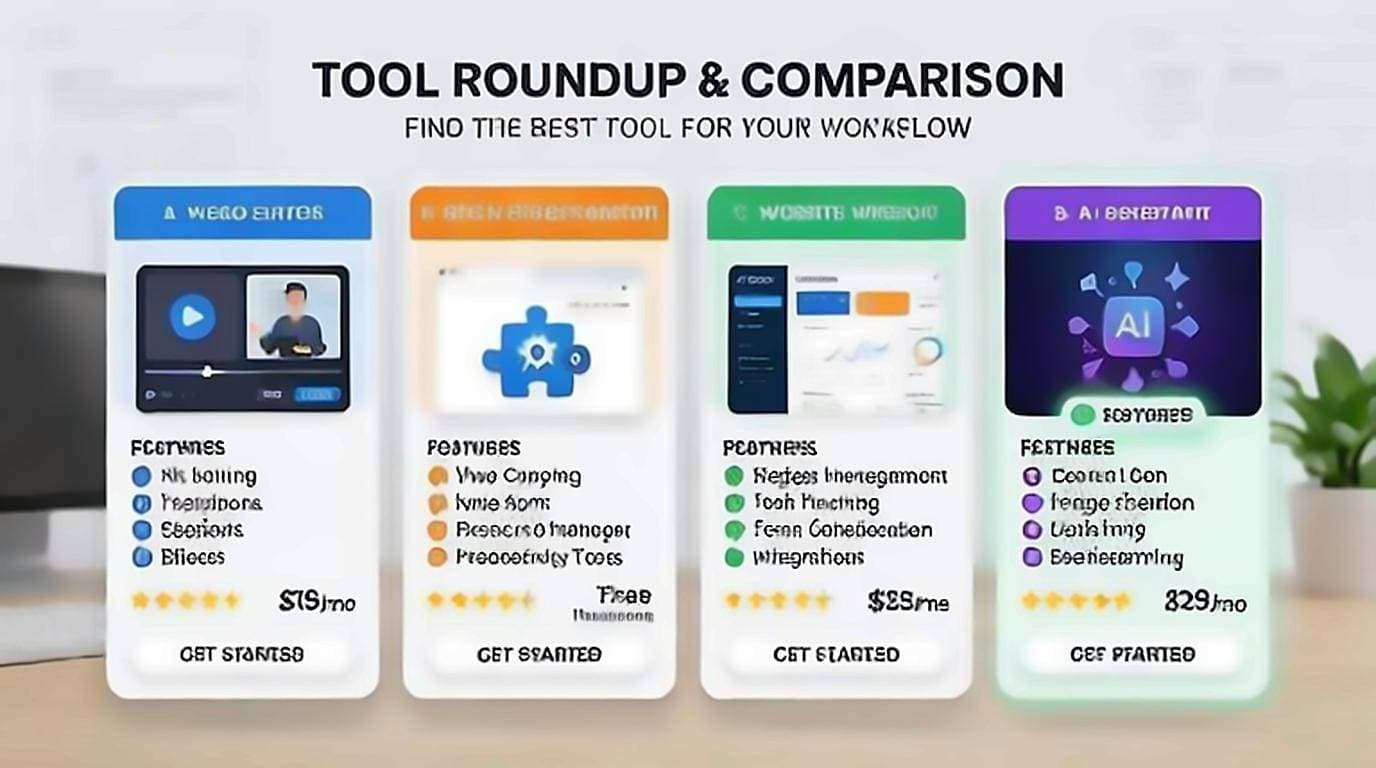
There is no single best tool here, and any list that names one is selling something. The YouTube transcript tools worth knowing fall into four categories — YouTube's own caption panel, on-page browser extensions, standalone transcript websites, and AI summarizer apps — and they solve genuinely different problems. Which one is right depends on whether you want to read along, search a video, copy clean text, or generate a summary. Below is an honest breakdown of each, including where ours is the wrong choice.
YouTube's built-in transcript panel
YouTube ships a transcript viewer on most videos. Open a video, click the "..." menu (or "Show transcript" under the description), and a timestamped panel appears on the right.
Pros
- Free and already there — no install, no third-party access.
- Timestamps are clickable, so you can jump to a moment.
- Reflects YouTube's own caption track (uploaded or auto-generated).
Cons
- The panel is cramped and easy to lose when you scroll.
- No real search inside the transcript beyond your browser's Ctrl+F.
- Copying produces messy text with timestamps baked in on some layouts.
- Not available on every video, and mobile support is limited.
Use it for a quick glance when you just want to confirm what was said. For heavier reading or copying, the other categories do more.
On-page browser extensions
An on-page extension adds a transcript directly to the YouTube watch page, usually beside the video. Our own free extension works this way: it shows the full transcript, lets you click any line to jump to that second, search within the video, and copy clean text with no timestamps or clutter — all without leaving YouTube or creating an account.
Pros
- You stay on the page you're already watching — no copy-pasting URLs.
- Instant in-video search beats Ctrl+F; jump to any keyword. See searching inside videos.
- One-click clean copy for notes, quotes, or drafts.
- No login, no link-sharing with a remote server for basic reading.
Cons
- Requires a one-time install in your browser — and an extension can read the pages it has permission for, so it is worth reading the permission list. Chrome's limited use policy sets what published extensions may legitimately do with what they see, which is the standard to hold any of them to, ours included.
- Desktop-focused; extensions don't run on the mobile app.
This is the best pick for people who read, search, and quote videos regularly. It turns YouTube itself into a usable reading and reference tool.
Standalone transcript websites
These are sites where you paste a video URL and get the full transcript on a separate page, often with export to TXT or SRT.
Pros
- No install; works from any browser, including some mobile setups.
- Good for batch exporting or downloading subtitle files.
- Handy when you can't add extensions (locked-down work machines).
Cons
- You leave YouTube and juggle two tabs.
- You hand a video link to a third-party server, which is a privacy trade-off.
- Ads, rate limits, and occasional broken videos are common.
- No jump-to-moment playback tied to your video.
Reach for a transcript website when you need a downloadable file or you're on a machine where you can't install anything. For a step-by-step, see how to get a YouTube video transcript.
AI summarizer tools
These tools pull the transcript behind the scenes and return a summary, chapter list, or key-points digest instead of the raw text.
Pros
- Fast way to decide whether a long video is worth watching.
- Good for outlines, study notes, and meeting-style recaps.
- Some generate chapters and highlight quotes automatically.
Cons
- You get the model's interpretation, not the exact words — bad for precise quoting.
- Most require an account, and many gate real use behind a paywall.
- The video content is sent to an AI provider, another privacy consideration.
- Accuracy depends on caption quality; garbage in, garbage out.
Use a summarizer when you want the gist quickly. If you need verbatim text, pair it with one of the tools above. Our guide to summarizing a YouTube video covers doing this well.
Four questions that sort tools quickly
Rather than reading feature lists, put a candidate through the same short test. It takes about a minute and tells you more than any comparison table.
- Open a video with heavy jargon and check the output against the audio. Every tool looks accurate on clear speech about ordinary topics; the differences show up on technical vocabulary.
- Copy the text and paste it into a document. You are looking for whether you get sentences or fragments, and whether timestamps come along uninvited.
- Try a video over an hour. Long videos are where tools truncate silently, and a tool that returns the first twenty minutes without saying so is worse than one that fails outright.
- Watch what the tool asks for. An account, a URL submitted to a server, or a permission to read every site you visit are all prices, even when the tool is free.
Which tool should you use?
Match the tool to the job:
- Quick check of what was said — YouTube's built-in panel.
- Reading, searching, and quoting on YouTube — an on-page extension.
- Downloading SRT/TXT or working without installs — a transcript website.
- Getting the gist of a long video fast — an AI summarizer.
- Turning a video into written content — an on-page extension for clean text, then edit. See repurposing videos into blog posts.
A few things to check before you commit
Whatever category you choose, evaluate it on four points: does it keep clickable timestamps, can you search inside the transcript, does copy output come out clean, and what happens to your data. Free tools that read the existing caption track locally are the safest bet for everyday use. Paid AI tools earn their price only if you genuinely need summaries and analysis, not raw text. Start free, and upgrade only when a specific need appears.