
How to Find the Transcript on YouTube
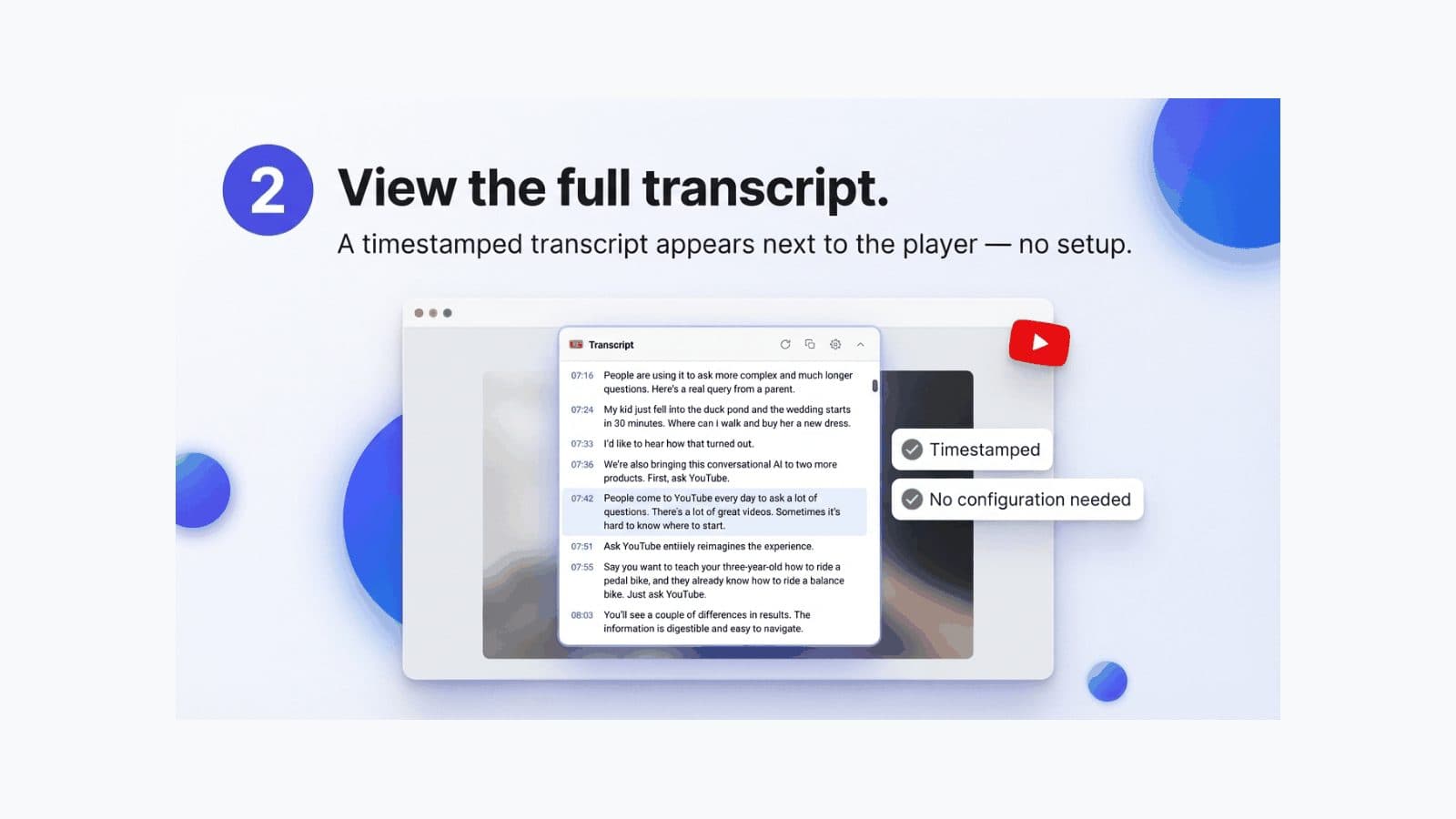
To find the transcript on YouTube, look inside the video description rather than under the player: click …more to expand the description, scroll to the bottom, and click Show transcript. That is the whole answer, and the reason people cannot find it is that the button moved. It used to live in the … menu next to Share and Save, and a great deal of advice still written online points there.
Where the Show transcript button is now
- Open the video on a computer.
- Click …more in the description box under the title.
- Scroll past the description text, the links and the chapter list.
- Click Show transcript at the bottom.
The panel opens to the right of the player and scrolls itself to follow playback, so the line being spoken stays highlighted. Click any line and the video jumps to that second — the single most useful thing the panel does, and the reason it is worth finding at all.
How to open the transcript on the mobile app
The path is the same in shape and worse in practice: tap the video, tap the description to expand it, then scroll to the bottom and look for Show transcript. On current versions of the app it is there. On older builds it is not, and no amount of looking will produce it.
When it is missing, the reliable fallback is to open the same video in your phone's browser and choose Desktop site from the browser menu. The desktop layout works on a phone screen, and the transcript panel comes with it.
Viewing it on a laptop or desktop without losing your place
The panel is narrow and shares the sidebar with recommendations, so it is easy to scroll past the thing you opened it for. Two habits help. Pause the video before you read, because the auto-scroll fights you while playback continues. And use your browser's find — Ctrl+F or Cmd+F — only after scrolling the panel to the end, since lines that have not rendered yet cannot be found.
That last limitation is why in-panel search exists at all. If you are looking for a specific moment rather than reading along, searching inside the video is a different and much faster job than finding the panel.
Turning the timestamps off
The three-dot menu at the top of the transcript panel has a Toggle timestamps option. Turning them off makes the panel far easier to read as prose, and it is the first thing to do if you plan to copy anything, since it removes half the cleanup. It does not remove the line breaks — those come from the captions themselves, which are cut every few seconds regardless of where sentences end.
Switching the transcript language
At the bottom of the panel is a language dropdown, and it is easy to miss. It lists every caption track the video carries: the original, any the creator uploaded, and often a long list of machine translations.
Worth knowing before you rely on one — the translated tracks are machine translations of the caption track, not separate transcriptions, so they inherit whatever the original got wrong and add translation errors on top. If you are going to quote something, read it in the original language and translate afterwards, where you can at least see what the speaker actually said.
Copying what you found, on a phone
Finding the transcript in the app and getting text out of it are different problems. Selection in the app fights you: the panel keeps scrolling to follow playback while you drag, so a long selection slips away halfway through.
Pause the video first and the panel holds still, which makes a long selection possible. For anything more than a paragraph, the desktop-site route is still the better one — and if you want the text as a file rather than on the clipboard, downloading the transcript covers the formats.
Transcript not showing? Here is why
If the button is genuinely absent rather than hiding, the video has no caption track for the panel to display. The causes are few and worth telling apart:
- The creator turned captions off. Nothing on your end reveals them; they do not exist publicly.
- The upload is too recent. Automatic captions take anywhere from minutes to a few hours. Come back later and the button appears.
- The language is not supported. Automatic captions only exist for the languages YouTube's speech recognition covers, and its help page lists them — if the spoken language is not on that list and the creator uploaded nothing, there is nothing to show.
- The audio defeats recognition. Music, heavy noise, or whispering can stop captions being generated at all.
- You are looking at the wrong language. A track may exist in the original language but not the one your interface is set to. Check the language dropdown at the bottom of the panel before concluding it is missing.
For the videos where none of that resolves it, what to do when a YouTube video has no transcript covers generating one yourself.
Shorts are a different case
YouTube Shorts have no transcript panel. The player is built for a vertical feed and simply does not carry that interface, which is why searching for the button there is a dead end rather than a matter of looking harder.
The workaround is to open the Short as a regular video: replace /shorts/ in the URL with /watch?v= and the same video loads in the standard player, transcript panel and all — provided it has captions, which short uploads often do not.
Once you have found it
Finding the panel is step one; most people are there because they want the text out of it — and how can I get a transcript of a YouTube video is the condensed version of everything that follows. Copying from the native panel drags timestamps and line breaks along, so if you are heading for a document or an AI prompt, see how to copy a YouTube transcript for the clean version, or how to download it as a file.
If you would rather not hunt for the button at all, our free extension puts the full transcript on the watch page the moment a video opens — searchable, clickable, and copyable without the menu archaeology. The complete set of methods, including transcript websites, is in the pillar guide on how to get a YouTube video transcript.