
How Can I Get a Transcript of a YouTube Video?
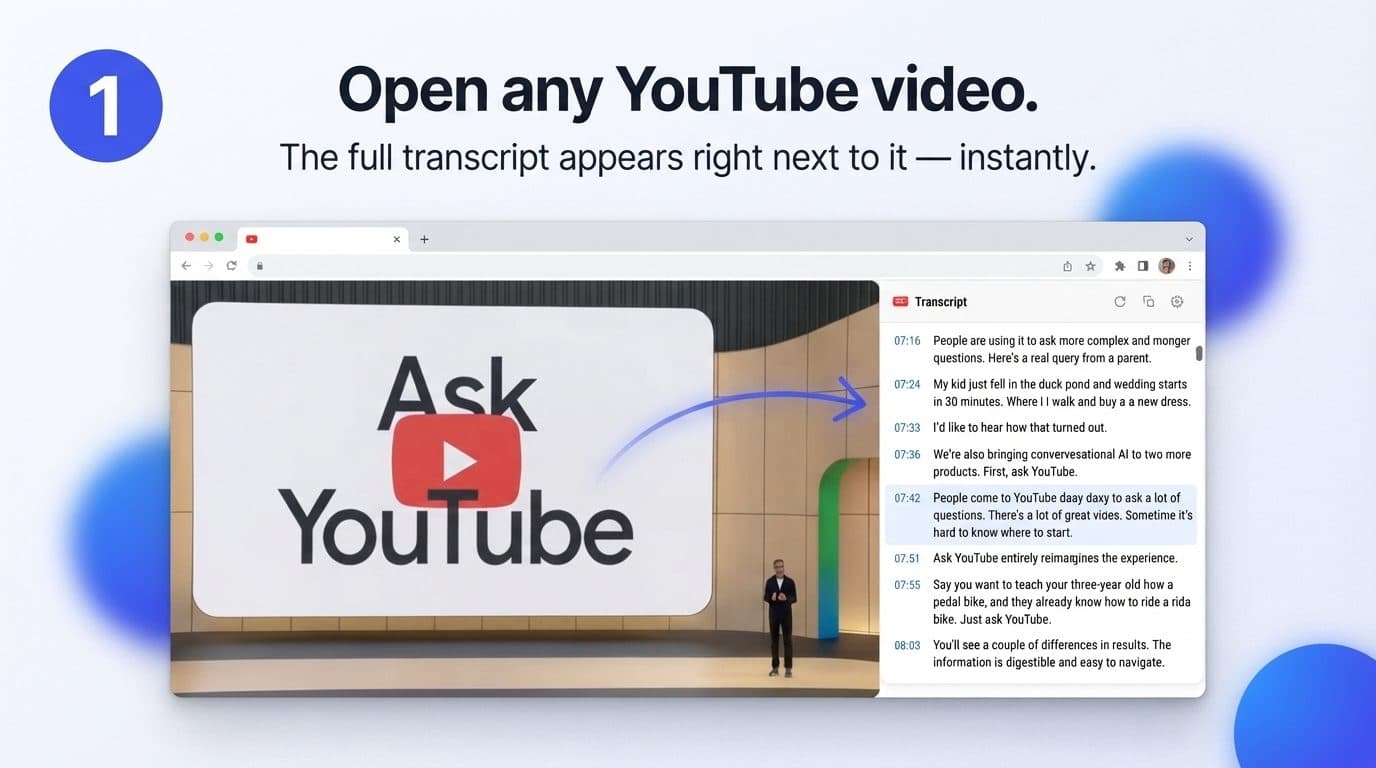
You can get a transcript of a YouTube video in about ten seconds: open the video, expand the description, and click Show transcript. The text was already there — YouTube stores a caption track for almost every video and simply does not show it to you by default. The rest of this guide covers the three ways to get at it, how to end up with clean text rather than a column of timestamps, and what to do on the videos where the option is missing.
The short answer, in three steps
- Open the video and click …more under the title to expand the description.
- Scroll to the bottom of the description and click Show transcript.
- A panel opens beside the player with every line of speech, each stamped with the second it was said.
That is the whole method for a single video. YouTube's help page on video transcripts confirms the one condition that matters: the panel exists for any video that has captions, whether the creator uploaded them or YouTube generated them automatically. No captions, no panel — which is the single reason the button goes missing, and there is more on that below.
Getting the transcript of an entire video
A common surprise: the panel only renders the lines near your current position, so selecting what you can see gives you a fraction of the video. To capture the whole thing you have to scroll the panel to the very end first, which forces every line to load, and only then select from top to bottom.
On a forty-minute video that is a lot of scrolling, and it is the point where most people give up and start looking for a tool. Do not try to shortcut it by clicking the first and last lines: every line in that panel is a seek control, so clicking jumps the video and the panel scrolls itself back to the new playhead. Pause the video first, scroll to the bottom, then drag a selection upward — the one sequence that reliably captures the whole thing.
How to extract it as clean, usable text
Whatever you copy out of the native panel arrives with a timestamp welded to the front of every line and a hard break at the end of each one. Pasted into a document it reads as a broken column of fragments rather than prose.
The panel's own three-dot menu has a Toggle timestamps option that helps, though the line breaks survive it. Our free extension takes the other approach: it puts the full transcript on the watch page and gives you a one-click clean copy with the time codes and breaks already stripped, so what lands on your clipboard is a paragraph. The mechanics of both routes, including a regex for cleaning a native copy by hand, are in how to copy a YouTube transcript.
Can you get it for free?
Yes, and you should be suspicious of anything charging for it. The caption track already exists on YouTube's servers, and reading it costs essentially nothing — which is why so many free tools exist and why the paid ones are really selling something else: bulk processing, speech-to-text for videos that have no captions at all, or an AI layer on top.
Where the free options differ is what they do with your attention and your data. A site wants your video link on its server and usually shows you ads for the trouble; the built-in panel wants three clicks and gives you messy text; an on-page extension wants a one-time install. The comparison in best YouTube transcript tools goes through the trade-offs honestly, including where our own extension is the wrong choice.
Can ChatGPT get the transcript for you?
Not reliably from a link alone. Ask an AI assistant for the transcript of a URL and you may get a summary assembled from the title, the description and whatever it can reach — or a confident invention. The dependable pattern is the reverse: get the transcript yourself, paste the text in, and let the model work on words it can actually read.
That order matters more than which model you use. Once the text is in the prompt, summarising, outlining and pulling quotes all become reliable — see how to summarize a YouTube video for prompts that keep the model anchored to the source.
On a phone
The YouTube app buries the transcript behind the description: tap the description, scroll to the bottom, look for Show transcript. It is there on current versions and absent on older ones, which is why half the advice you find online contradicts the other half.
When the button is not there, open the video in your phone's browser and request the desktop site from the browser menu. That gives you the same panel a computer shows, and it is the one workaround that has kept working through every redesign.
When there is no transcript at all
If the option is missing everywhere you look, the video genuinely has no caption track. That happens when the creator disabled captions, when the upload is too fresh for automatic captions to have finished, when the spoken language is one YouTube cannot auto-caption, or when the audio is too noisy or musical for recognition to produce anything.
Some of those fix themselves — a fresh upload usually has captions within a few hours. The rest need a different approach, and what to do when a YouTube video has no transcript covers the workarounds, including generating your own with speech-to-text.
Which method to actually use
For one video, once, the built-in panel is fine and you already know how to use it. If you pull transcripts often — to study, to quote, to feed an AI — the friction of three clicks and a manual cleanup repeats every single time, and that is what an on-page transcript removes. For the full comparison of every route, including transcript websites and when they make sense, start with the pillar guide on how to get a YouTube video transcript.
One caveat regardless of method: the text you get is only as good as the captions behind it. Automatic captions handle ordinary speech well and mangle proper nouns, numbers and jargon — precisely the words worth quoting. Check anything important against the audio before you publish it.