
YouTube Transcript With Timestamps
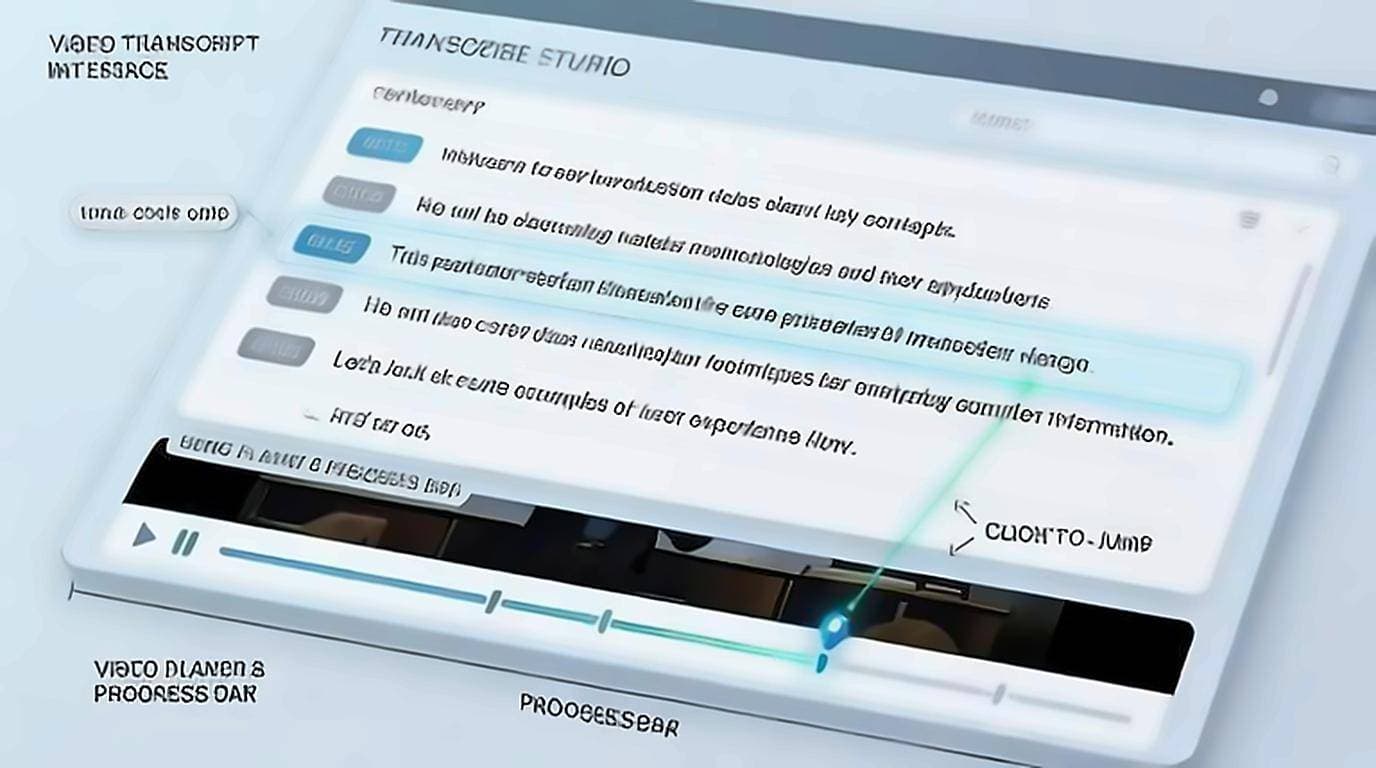
You remember someone saying it, somewhere around the middle. So you drag the progress bar, overshoot, drag back, and lose two minutes finding thirty seconds. A YouTube transcript with timestamps ends that: every line carries the second it was spoken, so you read until you spot the sentence and click it. The video is already there. That single property is what turns a wall of text into a map — for finding a passage, citing an exact second, or marking where a clip starts.
Why timestamps matter
A transcript without timestamps tells you what was said. A transcript with timestamps also tells you when, and that unlocks several things plain text can't do:
- Jump to a moment — click a line and the video seeks to that second, no scrubbing.
- Cite precisely — reference "at 14:32" so others can verify your quote. Academic styles expect this: the MLA in-text citation rules put a timestamp where a page number would go for time-based media, so a timestamped transcript is the difference between a citable quote and an approximate one.
- Make clips — mark exact in and out points for highlights or shorts.
- Navigate long videos — treat the transcript as a clickable table of contents.
- Verify captions — jump to the audio to confirm a tricky name or number.
For anything longer than a few minutes, timestamps are the difference between hunting through a video and going straight to the part you need.
Timestamped vs clean text
You don't always want time codes. The two formats serve different jobs:
Timestamped transcript
- Best for navigation, citation, verification, and clip-making.
- Lets you move between text and video instantly.
- The format to use while you're working with the video.
Clean text (no timestamps)
- Best for reading, quoting, summarizing, and writing.
- Pastes cleanly into notes, docs, and drafts without clutter.
- The format to use after you've found what you need.
The ideal tool lets you switch between them: browse with timestamps to find the right passages, then copy clean text for your notes or article. Our free extension does both — every line is timestamped and clickable, and you can copy clean text without the time codes when you're ready to write. Learn how clean copy helps when you repurpose videos into blog posts.
How click-to-jump works
Click-to-jump is what makes timestamps more than decoration. Each transcript line stores the second it starts. When you click it, the tool tells the YouTube player to seek to that time, and the video jumps there instantly.
This is far faster than dragging the progress bar and guessing. Instead of scrubbing back and forth to find "the part about pricing," you scan the transcript, spot the line, and click. The video is already there. Combined with in-video search, it becomes a precision tool — search a keyword, then click the result to land on the exact moment. See searching inside videos for how the two work together.
Getting a transcript with timestamps
There are a few ways to get timestamped text, depending on where you want to work:
- YouTube's built-in panel — shows timestamps and supports clicking to jump, but the panel is small and hard to work in.
- On-page extensions — show a full timestamped transcript beside the video with click-to-jump and clean-copy in one place.
- Transcript websites — often export SRT files, which include timestamps in subtitle format.
- SRT/VTT exports — subtitle files carry precise time codes for editing tools. Those are subtitle formats rather than transcripts, and the difference between them decides which one you actually want.
For working directly with a video — reading, jumping, and quoting — an on-page transcript is the smoothest. For a full walkthrough of your options, see how to get a YouTube video transcript.
Turning a timestamp into a shareable link
A timestamp is only useful to other people if they can reach it. YouTube accepts a start time as a URL parameter, so any moment in a transcript can become a link that opens the video already positioned there.
Append ?t= followed by the number of seconds to a watch URL, or &t= if the URL already has parameters. The share dialog on the watch page will build one for you from the current position, but doing it by hand is often faster when you are working from a transcript, because you already have the time in front of you. Note that a value like 1m30s also works, while a plain 90 is the form least likely to be mangled when the link is pasted elsewhere.
This is what makes a timestamped transcript useful to anyone but you. A claim with a link attached can be checked in one click; the same claim with "around the middle somewhere" usually is not checked at all.
Practical uses for timestamped transcripts
Timestamps pay off across very different tasks:
- Researchers and students cite the exact second of a claim and return to it later.
- Journalists verify quotes against the audio before publishing.
- Editors and creators mark clip boundaries for shorts and highlights.
- Course makers build chapter lists and reference specific explanations.
- Writers pull the right passage, then switch to clean text to draft.
In every case the pattern is the same: use timestamps to locate, then act — quote it, clip it, or cite it.
A note on timestamp accuracy
Timestamps are only as good as the caption track they come from. They're generally reliable to the second, but on auto-generated captions the text at a given time may contain errors even when the timing is right. That's exactly why click-to-jump is so valuable — it lets you confirm the audio at that moment before you trust the words. If precision matters, verify against the audio, as covered in auto captions accuracy.
Putting it together
A timestamped transcript is the most flexible way to work with a video. Use the time codes and click-to-jump to move around, verify, and mark clips; use clean-text copy when it's time to quote or write. Get a transcript that supports both, keep it open beside the video, and an hour-long talk stops being something you scrub through.